MM logo white 1
MM logo red
Image description is not available

How do you connect a projector to your laptop?

Femke8 JUNE 2026
A compact projector sits beside a laptop on a wooden desk, ready to display films or presentations with clear brightness.

With a projector, you can watch your films, series, sports matches or presentations on a big screen. In this article, you'll learn step by step how to connect a projector to your Windows laptop or MacBook, and we'll also show you the options for connecting wirelessly.

Watch the World Cup on a projector

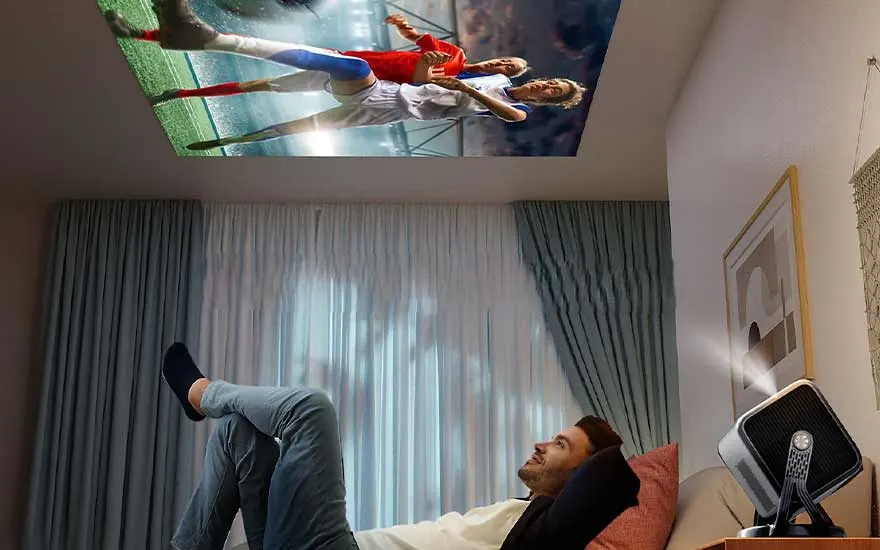
A man relaxes on a bed while a projector casts a football match across the ceiling in a comfortable, softly lit room.

Want to watch the World Cup on a big screen with your friends and family this summer? Then a projector is a great option. With a projector, you can create an image of 100 inches or more on almost any wall or projection screen. That way, you'll create the ultimate stadium atmosphere and won't miss a single second.

How to watch the World Cup in the best way
In short: connecting a projector to your laptop

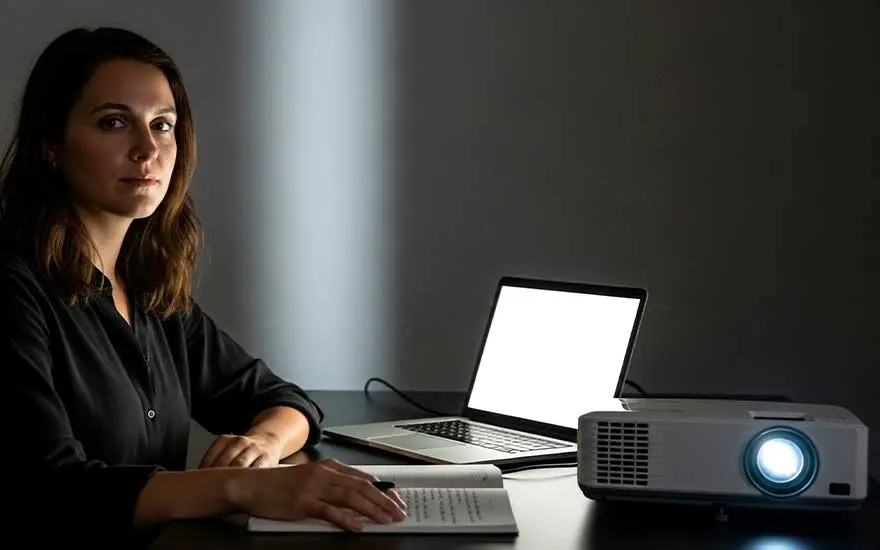
A woman sits at a dark desk with a laptop and notes, while a projector shines brightly for work or a presentation.

Here's how to connect a projector to a Windows laptop or MacBook:

  • Check the connections and cables.
  • Connect the projector using the video cable.
  • Plug the projector into a power socket.
  • Adjust the display settings.
  • Use a smart projector or a projector that supports Miracast or AirPlay if you'd like to connect wirelessly.

How do you connect a projector to a Windows laptop?

You can easily connect a projector to your Windows laptop in just a few steps. To do this, follow the steps below.

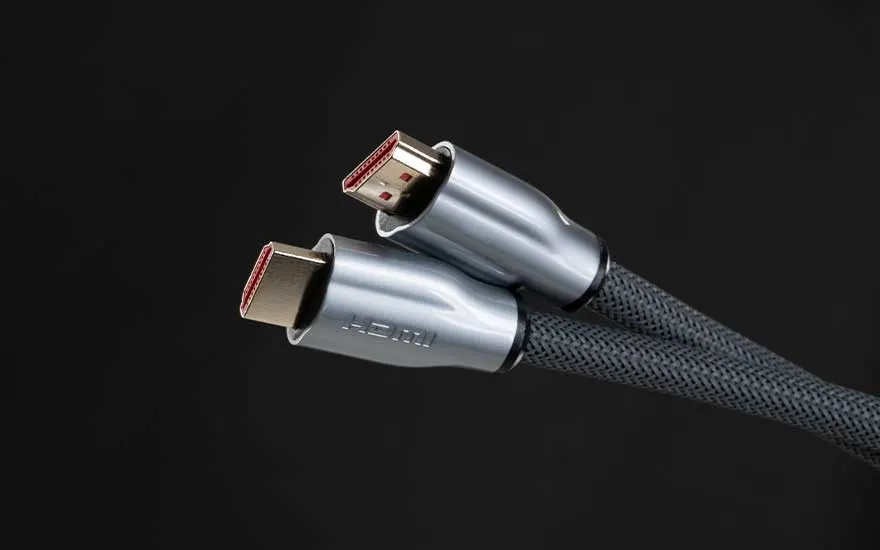
Two HDMI connectors with braided cable sleeves are shown in close-up against a black background, sleek and modern.

Make sure you have the right connections and cables

First, check which connection your laptop and projector use. Modern projectors usually use an HDMI connection or a USB-C-to-HDMI connection. These are the most common and most convenient options. Older projectors may still use a VGA connection. That's less common, but it's still found on older models. So it's worth checking in advance which ports are available, so you can grab the right cable or adapter straight away.

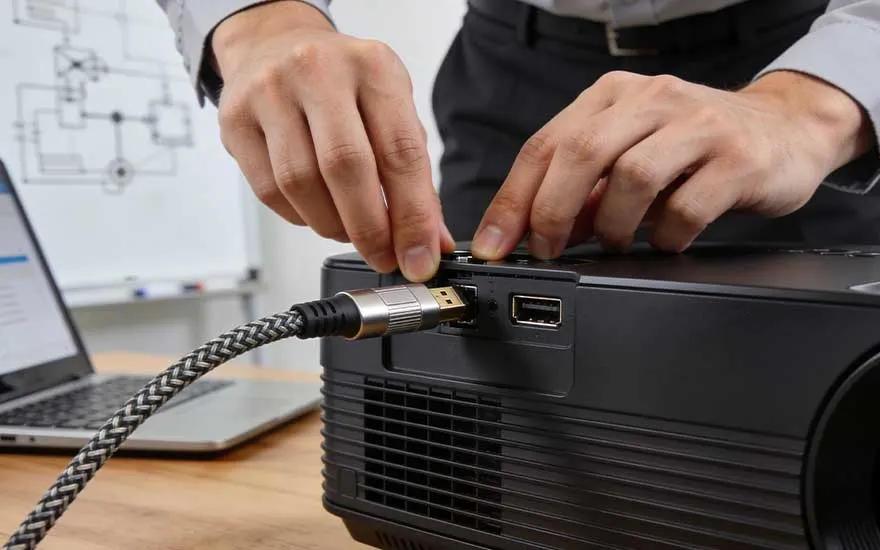
Someone carefully connects a cable to a projector, with a laptop and technical diagrams visible in the background.

Connect the projector to your laptop using the video cable

Start by connecting the video cable. That way, your laptop can recognise the projector as an external display straight away, which makes the connection process much quicker.

  1. Plug one end of the HDMI, USB-C-to-HDMI or VGA cable into your laptop.
  2. Plug the other end into the matching video input on the projector. Make sure you connect the cable to the correct port. If you're using a VGA cable, make sure you also tighten the screws on the sides properly, so the cable doesn't come loose easily.

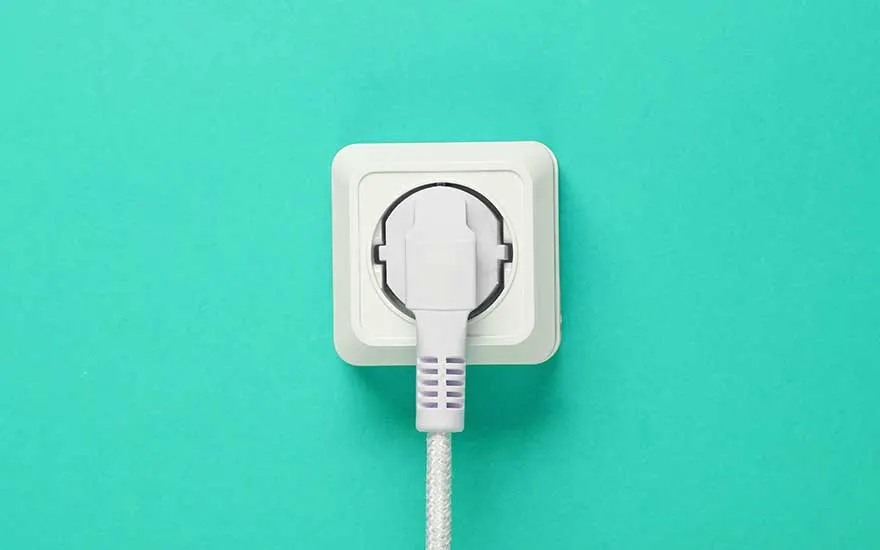
A white plug is inserted into a wall socket against a turquoise background, illustrating a simple power connection.

Plug the projector into the mains

Next, plug the projector into the mains using the power cable that came with it.

  1. Insert the power cable into the projector's power input.
  2. Then plug the other end into a wall socket.
  3. After that, switch the projector on using the power button.

It's best to plug your projector into the mains after you've connected the video cable. That way, as soon as the projector starts up, it can pick up the signal from your laptop straight away and help prevent connection issues.

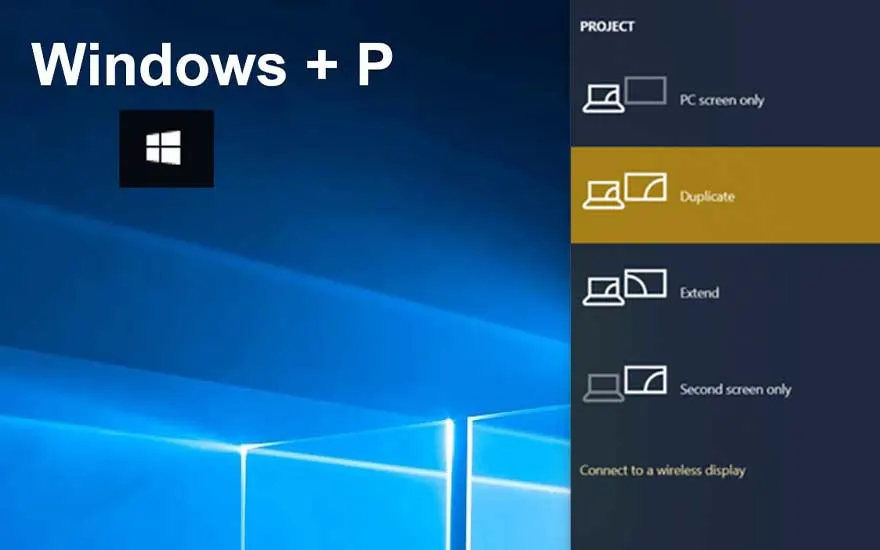
A Windows screen shows the Windows + P shortcut with projection options such as duplicate, extend and second screen.

Go to the display settings on your laptop

Once your projector has started up, choose how Windows should show the image. In most cases, Windows will detect the projector automatically, but sometimes you'll need to adjust this manually.

Here's how to set the display settings yourself:

  1. Press the Windows key + P.
  2. Then choose 'Duplicate' if you'd like to show the same image on both your laptop and the projector.
  3. Choose 'Extend' if you'd like to use the projector as an extra screen.
  4. If the screen still isn't working, go to 'Settings' -> 'System' -> 'Display'.
  5. Click 'Detect' there if Windows doesn't spot the projector straight away.

An ultra-short-throw projector displays a colourful image on a large screen above a modern white cabinet at home.

Check whether the connection is working properly

Finally, check that everything is working as it should. First, see whether the image appears on the projection screen or wall. Also make sure the projector is set to the correct input source, such as HDMI 1, HDMI 2, USB-C or VGA. You can usually change this using the Source or Input button on the projector or remote control. Then briefly test the sound as well if you'd like to play audio through the projector. If the picture or sound doesn't work straight away, check the cables again, the selected source on the projector and the display settings in Windows.

Connecting a projector to a MacBook

Five colleagues meet around a table with laptops and notes, while a presentation is visible on one computer screen.

Connecting a projector to a MacBook works almost the same as with a Windows laptop. Here too, you first check the connection types and cables, connect the video cable, plug the projector into the power supply and then adjust the display settings properly. With newer-generation MacBooks, you'll usually use a USB-C connection. For that, you'll need a USB-C-to-HDMI adapter.

Do you have an older MacBook? Then you'll often use a DisplayPort cable, such as a Mini DisplayPort-to-HDMI cable or a Mini DisplayPort-to-VGA cable. Once the projector is connected, go to the display settings on your MacBook to adjust the image. There, you can choose whether you'd like to mirror the display or extend the screen.

How do you connect a projector to your laptop wirelessly?

People float on inflatables in an indoor pool while a projector shows a football match on a large wall screen.

In some cases, you can also connect your projector to your laptop wirelessly. This is useful if you'd like to control your projector from a distance and don't want to deal with cables. For this, you'll need a smart projector or a projector that supports wireless connections such as Miracast or AirPlay. Not every projector supports this as standard. Some models only work with a cable, while others only support specific wireless technologies. So if you'd like to use your projector wirelessly, it's worth paying close attention to this when buying one.

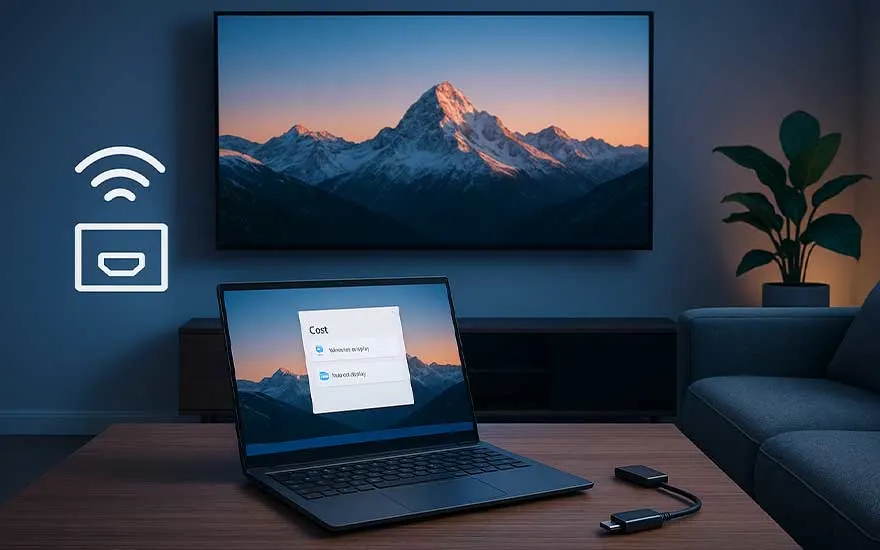
A laptop sits on a table and wirelessly shares a mountain landscape to a large screen in a stylish, softly lit lounge.

Connect using Windows Miracast

If you're using a Windows laptop, you can connect through Miracast, as long as your projector supports it. That means you won't need to use any cables.

Follow these steps:

  1. Switch on the projector and open the 'Screen Mirroring' function in the settings.
  2. On your laptop, press the Windows key + K.
  3. Select the projector from the list of available devices.
  4. Confirm the connection.
  5. Then, if needed, press the Windows key + P to choose whether you'd like to duplicate or extend the display.

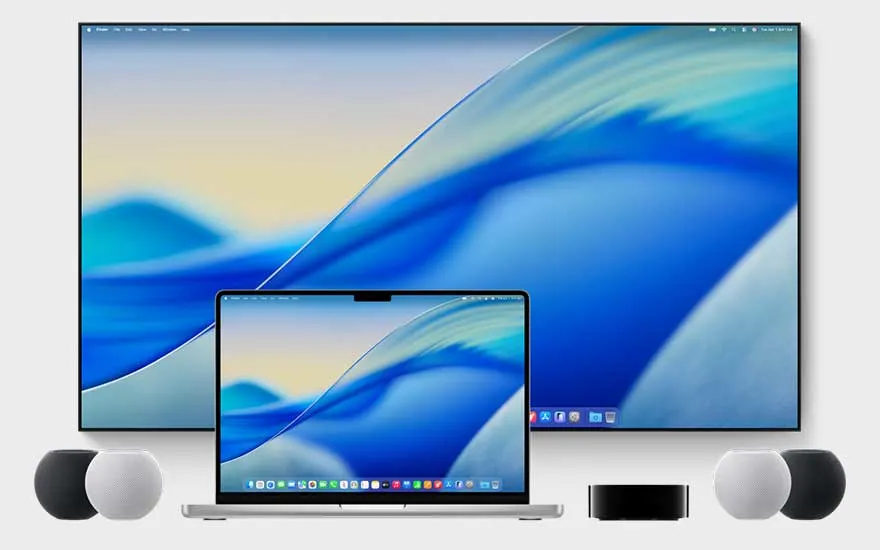
A laptop and large display show the same blue abstract wallpaper, framed by smart speakers in a clean modern setup.

Connect using Apple AirPlay

If you're using a MacBook, wireless connection will usually work through AirPlay.

  1. Switch on the projector and check whether it supports AirPlay. You can often find this in the display settings or on the projector box.
  2. Make sure your MacBook and the projector are connected to the same Wi-Fi network.
  3. On your MacBook, click 'Control Centre' in the top-right corner of the menu bar.
  4. Choose 'Screen Mirroring'.
  5. Select the projector.
  6. Choose whether you'd like to mirror the display or use it as a separate screen.

Our advice on connecting your projector at MediaMarkt

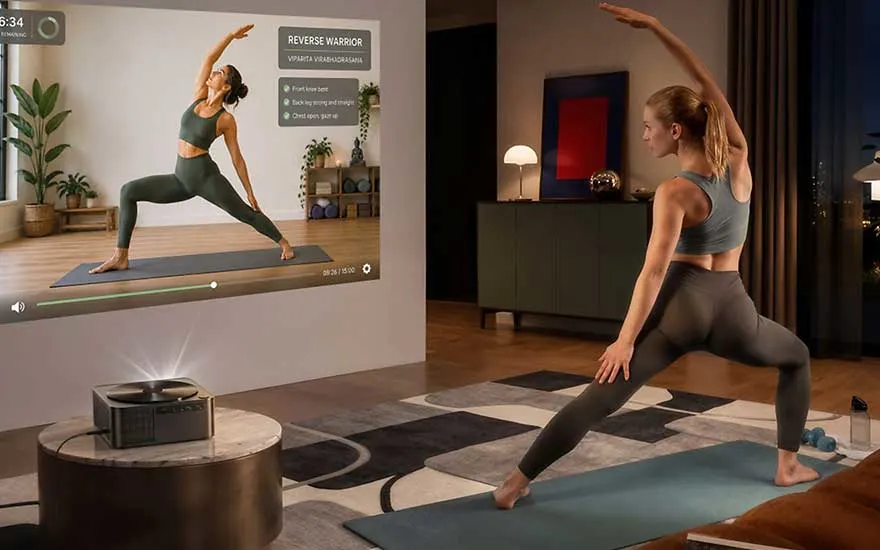
A woman follows a home yoga class by copying the instructor’s pose projected large and clearly onto the living-room wall.

You can connect a projector to your Windows laptop or MacBook in different ways. First, always check the available connections, then connect the video cable, plug in the power cable and adjust the display settings. For a wireless connection, you can use a smart projector or a projector that supports Miracast or AirPlay.

Should you choose a projector or a TV?

Veelgestelde vragen

View similar articles